eSIM setup
How to install your Airpass eSIM
Install your eSIM before travelling while you have Wi-Fi, then switch it on for mobile data when you arrive. The steps below work for most recent iPhone and Android devices that support eSIM.
Before you startInstall while connected to stable Wi-Fi.
Do not delete the eSIM after installing it.
Use the eSIM only in a country covered by your plan.
Restart your phone if data does not connect after landing.
iPhoneInstall on iPhone
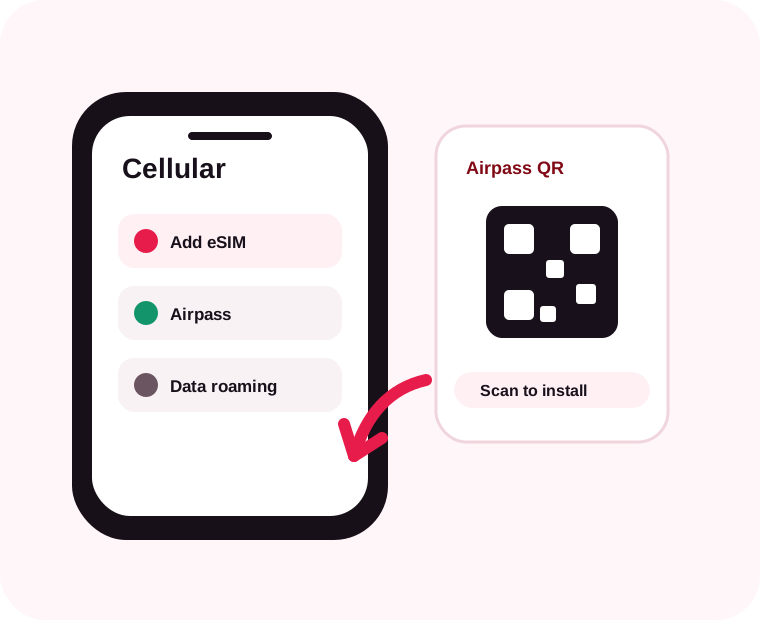
Apple devices usually place eSIM setup under Cellular or Mobile Data. If your order includes a one-tap iPhone activation button, you can use that instead of scanning.
- 1
Open Settings and choose Cellular or Mobile Data.
- 2
Tap Add eSIM, then choose Use QR Code.
- 3
Scan the Airpass QR code from your order or another screen.
- 4
Confirm the eSIM, label it Airpass, and keep your primary line for calls.
- 5
When you arrive, select the Airpass line for Mobile Data and turn on Data Roaming.
AndroidInstall on Android
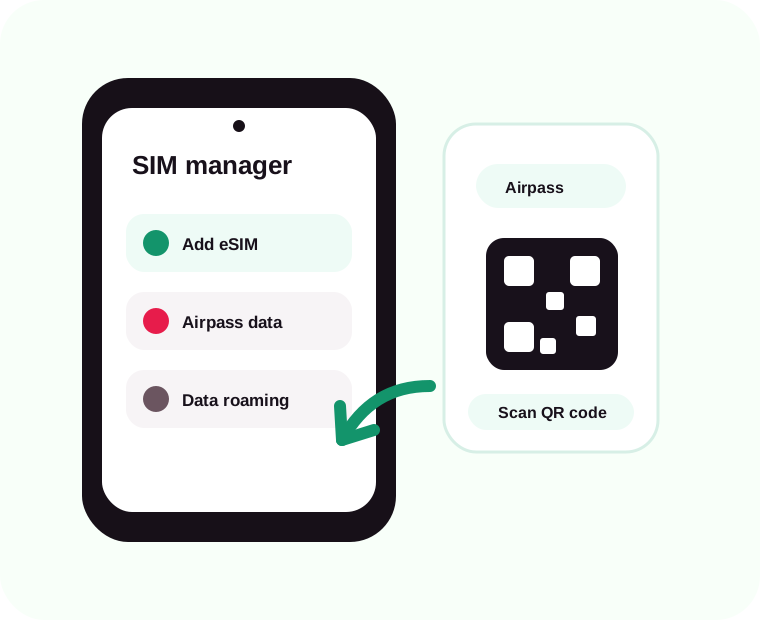
Android wording varies by brand. Samsung often says SIM manager, while Pixel devices usually say SIMs under Network & internet.
- 1
Open Settings and go to Network & internet or Connections.
- 2
Choose SIMs, SIM manager, or Mobile networks, then tap Add eSIM.
- 3
Select Scan QR code and scan the Airpass QR code from your order.
- 4
Confirm the download and name the eSIM Airpass.
- 5
When you arrive, make Airpass your data SIM and enable Data Roaming.
Manual setup
If the QR code does not scan
Open the install page from your Airpass account and copy the SM-DP+ address and activation code. On your phone, choose the option to enter details manually, paste both values, then continue with the same data and roaming steps.
Manual fieldsSM-DP+ addressActivation codeConfirmation code, if shown
When should I install my eSIM?
Install it shortly before travel or whenever you have stable Wi-Fi. Some plans activate when they first connect to a supported network.
Can I install the same eSIM twice?
Usually no. Most eSIMs can only be installed once, so do not delete it unless support tells you to.
Why is mobile data not working?
Check that the Airpass eSIM is selected for data, Data Roaming is on, and you are inside the destination or region covered by your plan.
